
Publishing NuGet Packages with Default Files using Visual Studio
The reason for writing this article is that I previously created a NuGet package with a custom Config file. At that time, to automatically update settings when the Config file changed, I added dependencies on several Microsoft.Extensions.Configuration related packages. However, to reduce package dependencies later, I decided to remove the Config file configuration part. To avoid future needs for including default files in packages, I decided to document the approach.
TIP
If the package you are developing uses custom configuration files, you should provide a basic template and add this template to the target project when the package is installed.
Basic Knowledge Before Developing a Package
Introduction to Class Library
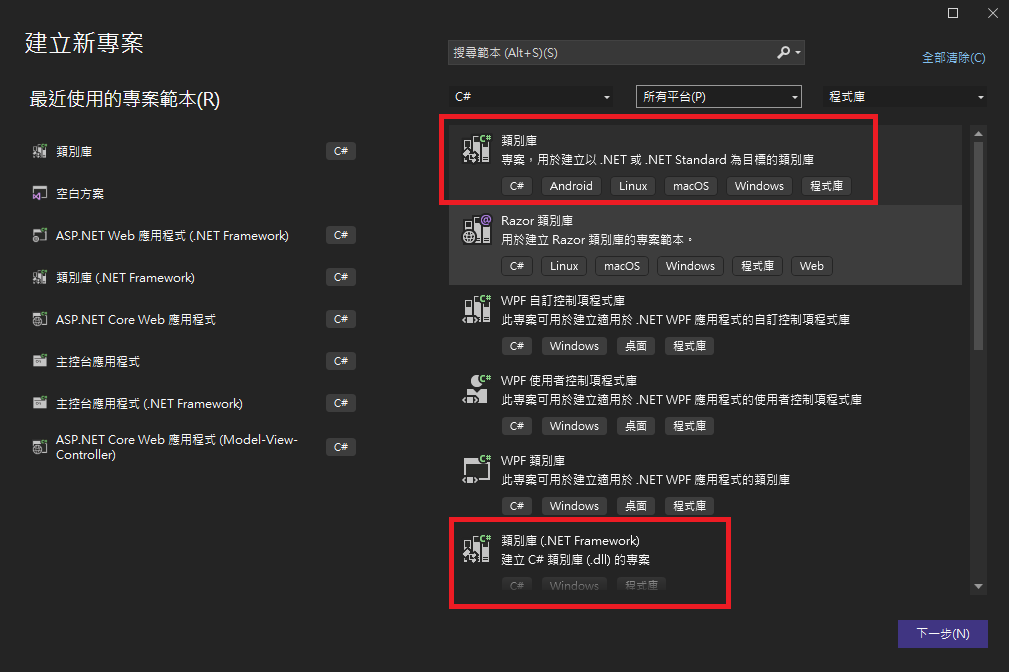
There are three target platforms you can choose from for a Class Library:
- .NET Framework: Can only be used by ".NET Framework" projects.
- .NET Core: Can only be used by ".NET Core" projects.
- .NET Standard: Cross-platform support, though versions after 2.1 no longer support ".NET Framework".
For information on choosing ".NET Standard" version support, please refer to .NET Standard.
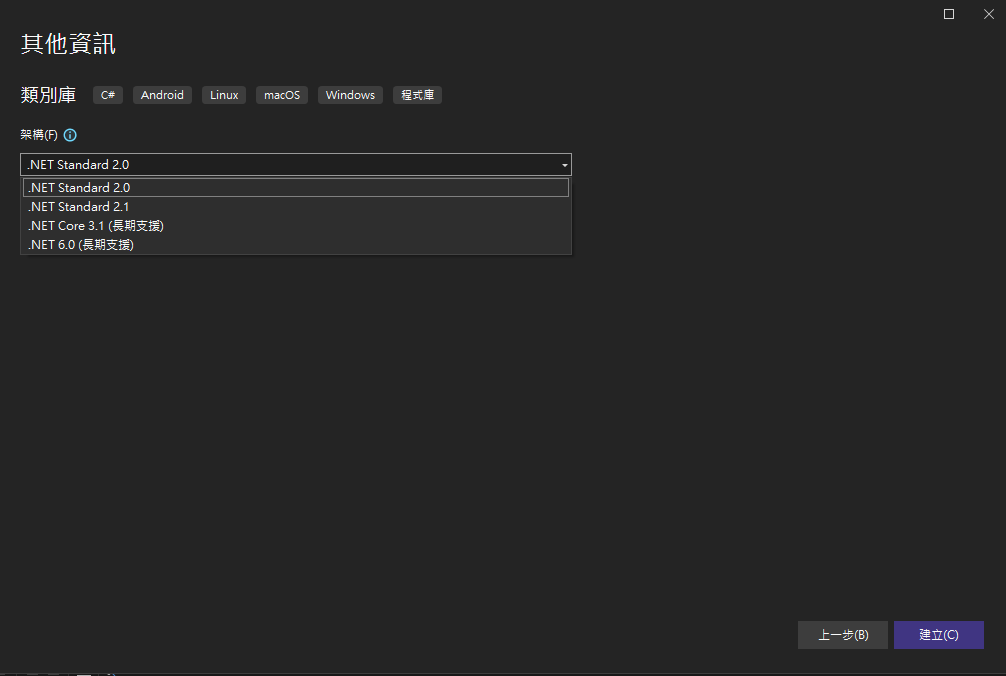
In newer versions of Visual Studio, ".NET Core" and ".NET Standard" are merged into the same option, likely because ".NET Core" was later renamed to ".NET". Subsequent version selection is provided as shown in the image below.
TIP
Regarding the choice of target platform, if you are developing a Class Library for a project, please choose the platform and version consistent with the project. If you are developing a NuGet package, it is recommended to choose ".NET Standard". If you need to support older versions of ".NET Framework", you can adjust the project file to support multiple versions.
Editing Package Information
The following content is only for ".NET Standard", as there is rarely a need to develop packages specifically for ".NET Framework" nowadays, and Class Libraries within a project do not need to be published as packages. Furthermore, Visual Studio has simplified ".NET Standard" development, such as allowing you to edit package information in the project file (csproj) without needing an extra ".nuspec" file.
Right-click on the project to open the project file XML; this is essentially editing the content of the project file (csproj).
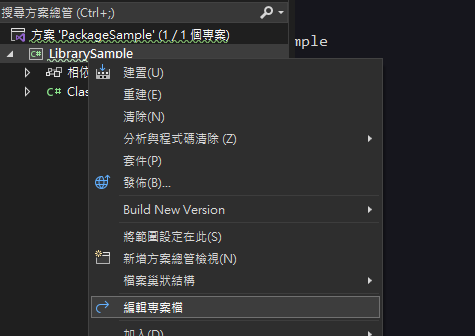
For information on package XML, please refer to Pack Target Inputs. Here, I will only explain a few necessary settings.
- TargetFramework: Since ".NET Standard 2.0" only supports up to ".NET Framework 4.6.1", if you want older versions of projects to be able to use it, you need to change
TargetFrameworktoTargetFrameworksand fill in the versions to be supported, separated by ";".
<PropertyGroup>
  <TargetFrameworks>netstandard2.1;netstandard2.0;net45</TargetFrameworks>
</PropertyGroup>Version: Assemblies generally have the following types of version numbers, which are composed of integers greater than or equal to 0, with a maximum value of
UInt16.MaxValue - 1.AssemblyVersion: This is the version number embedded when adding a reference to any component in the project. The general format is "{Major}.{Minor}.0.0".
FileVersion: Sets the project's AssemblyFileVersion, the actual version number of the DLL file. The general format is "{Major}.{Minor}.{Build}.{Revision}".
Version: Sets the project's AssemblyInfoVersion, the version number used for package identification. If
PackageVersionis not set, the NuGet version will use this setting. The format is "{Major}.{Minor}.{Patch}", and suffixes can be added if it complies with SemVer.Meanings of each variable (excerpted from MSDN):
- Major: Major version. Assemblies with the same name but different major versions are not interchangeable. A higher version number may indicate a major rewrite of the product where backward compatibility cannot be assumed.
- Minor: Minor version. If two assemblies have the same name and major version number but different minor version numbers, it indicates significant enhancements made for backward compatibility. This higher minor version number may indicate a point release of the product or a fully backward-compatible new version of the product.
- Build: Build number. Differences in the internal build number indicate a re-compilation of the same source code. Different internal build numbers may be used when the processor, platform, or compiler changes.
- Revision: Revision number. Assemblies with the same name, major, and minor version numbers but different revisions are intended to be fully interchangeable. A higher revision number may be used in builds that fix security vulnerabilities in previously released assemblies.
- Patch: Patch number, used for bug fixes where the interface is not modified.
For more on version numbers, you can refer to Using AssemblyVersion and AssemblyFileVersion attributes and the Version class.
TIP
- The reason {Build} and {Revision} of AssemblyVersion are 0 is that changes to these two version numbers are unrelated to interface changes and have fewer compatibility issues, so they are both set to 0 to reduce changes when referencing between components.
- There are many ways to handle Build. Some companies release a version every day, in which case the Build value is the number of days from a specific date to the release date. If a small package is not released frequently, some directly use the Patch value. In this case, the Revision becomes used to distinguish between pre-release versions and the official version. Of course, doing this does not comply with the original definition.
- PackageId: The name of the package. If not specified, the AssemblyName or directory name will be used as the package name.
- Description: When uploading a package to NuGet.org, the Description field is limited to 4000 characters.
- Authors: The author(s) of the package, separated by ";".
- PackageLicenseExpression: The SPDX license expression or path to the license file within the package, usually displayed in UIs like NuGet.org. If licensing the package under a common license, such as MIT or BSD-2-Clause, please use the associated SPDX license identifier, for example
<PackageLicenseExpression>MIT</PackageLicenseExpression>. If using other licenses, please add a license file to the project and usePackageLicenseFileto specify the location of the license file.
WARNING
NuGet.org only accepts license expressions approved by the Open Source Initiative or the Free Software Foundation.
Publishing NuGet Packages with Files
Installing NuGet packages provides the following two package management formats:
- package.config: Recommended for ".NET Framework".
- PackageReference: Managed directly in the project file (csproj); "ASP.NET Core" uses this method.
TIP
"PackageReference" has incomplete support for ".NET Framework". For details, see "packages.config (PC) to PackageReference (PR) migration #5877".
File Content
install.ps1
To allow projects using "package.config" to correctly add package files, this file is required. The example content was originally referenced from NLog, but NLog has since changed its approach, and I can only see the original NLog "install.ps1" from other people's blogs, so I won't include the source.
param($installPath, $toolsPath, $package, $project)

# Set default File Name
$configItem = $project.ProjectItems.Item("Config.json")

# Set 'Copy To Output Directory'. Values are: 1. Never 2. Always 3. PreserveNewest
$copyToOutput = $configItem.Properties.Item("CopyToOutputDirectory")
$copyToOutput.Value = 2

# Set 'Build Action' to 'Content'.
$buildAction = $configItem.Properties.Item("BuildAction")
$buildAction.Value = 2Project File (csproj)
<Project Sdk="Microsoft.NET.Sdk">
  <!--Package and project information-->
  <PropertyGroup>
    <TargetFrameworks>netstandard2.0;net45</TargetFrameworks>
    <AssemblyName>LibrarySample</AssemblyName>
    <Authors>Wing</Authors>
    <AssemblyVersion>0.0.0.0</AssemblyVersion>
    <FileVersion>0.0.0.0</FileVersion>
    <Version>0.0.1</Version>
    <Description>Testing</Description>
    <PackageLicenseExpression>MIT</PackageLicenseExpression>
  </PropertyGroup>
  <!--Default files and install.ps1, set package publishing information-->
  <ItemGroup>
    <Content Include=".\Config.json">
      <CopyToOutputDirectory>PreserveNewest</CopyToOutputDirectory>
      <PackageCopyToOutput>true</PackageCopyToOutput>
    </Content>
    <None Include=".\install.ps1">
      <Pack>True</Pack>
      <PackagePath>tools</PackagePath><!--Must set tools, case insensitive-->
    </None>
  </ItemGroup>
</Project>Publishing the Package
Right-click on the project and select "Pack" (if publishing an official package, it is recommended to change the configuration to Release).
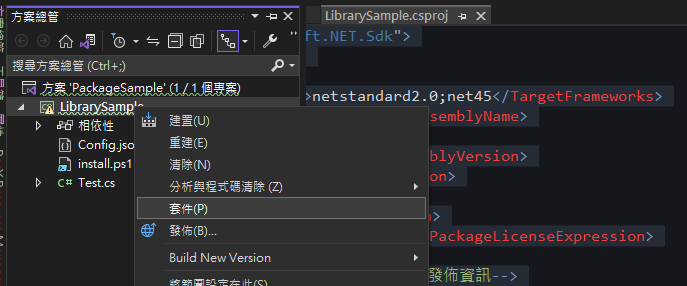
There will be a "nuspec" file under the intermediate folder "\obj{configuration}". The following operations will not use this file; it is just to explain the content. Here you can see "Config.json" being output to multiple target folders. This is due to compatibility with different versions of NuGet and the two package management formats. Here is an excerpt from the MSDN document.
Using NuGet 2.x and earlier, and planning to use packages.config; when installing a package, the
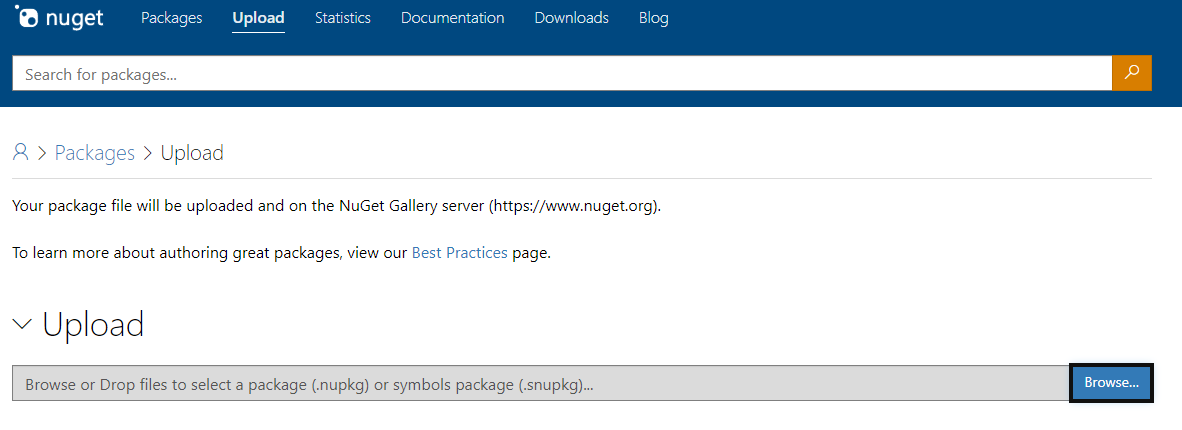
<files>item is also used to include immutable content files. Using NuGet 3.3+ and project PackageReference, the<contentFiles>element is used instead.xml<?xml version="1.0" encoding="utf-8"?> <package xmlns="http://schemas.microsoft.com/packaging/2012/06/nuspec.xsd"> <metadata> <id>LibrarySample</id> <version>0.0.1</version> <authors>Wing</authors> <license type="expression">MIT</license> <licenseUrl>https://licenses.nuget.org/MIT</licenseUrl> <description>Testing</description> <dependencies> <group targetFramework=".NETFramework4.5" /> <group targetFramework=".NETStandard2.0" /> </dependencies> <contentFiles> <files include="any/net45/./Config.json" buildAction="Content" copyToOutput="true" /> <files include="any/netstandard2.0/./Config.json" buildAction="Content" copyToOutput="true" /> </contentFiles> </metadata> <files> <file src="D:\Projects\PackageSample\src\LibrarySample\bin\Debug\net45\LibrarySample.dll" target="lib\net45\LibrarySample.dll" /> <file src="D:\Projects\PackageSample\src\LibrarySample\bin\Debug\netstandard2.0\LibrarySample.dll" target="lib\netstandard2.0\LibrarySample.dll" /> <file src="D:\Projects\PackageSample\src\LibrarySample\Config.json" target="content\.\Config.json" /> <file src="D:\Projects\PackageSample\src\LibrarySample\Config.json" target="contentFiles\any\net45\.\Config.json" /> <file src="D:\Projects\PackageSample\src\LibrarySample\Config.json" target="contentFiles\any\netstandard2.0\.\Config.json" /> <file src="D:\Projects\PackageSample\src\LibrarySample\install.ps1" target="tools\install.ps1" /> </files> </package>Upload to NuGet Server. There will be a "nupkg" file under "bin{configuration}". Upload it to the NuGet Server. If the server is NuGet.org, you can directly select the file to upload.
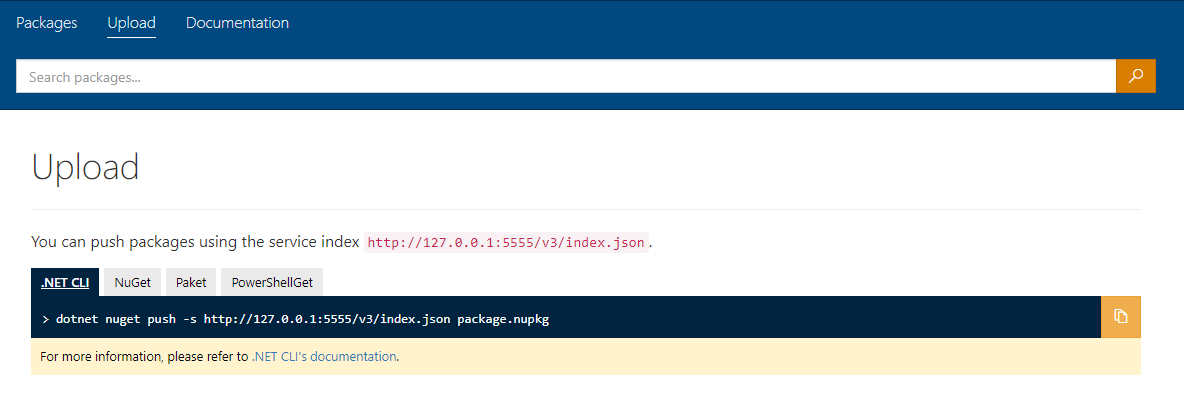
If the server is a self-hosted NuGet Server, some have upload commands. Please switch to the correct path first, and replace "package.nupkg" with the actual file name before executing.
TIP
Although I often write some junk packages that only I use and upload them to NuGet, it is recommended to upload such test packages to your own built environment.
Install Package to See Results
.NET Framework with package.config
When installing the package, "tools\install.ps1" will be executed automatically.

There is a Config.json file under the project.
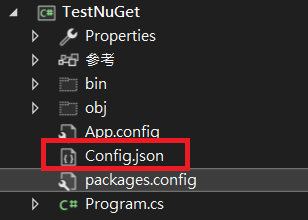
The file properties are set as "Content" for build action and "Copy if newer" for copy to output directory, as set in "install.ps1".

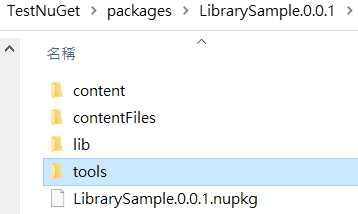
The folder under "packages{package}" will be consistent with the content of the "nuspec" file mentioned earlier. "content" and "contentFiles" store static files, and "lib" stores "DLLs".
ASP.NET Core
Compared with the output using "package.config" earlier, it can be found that using "PackageReference" does not execute "tools\install.ps1".

There is a Config.json file under the project.
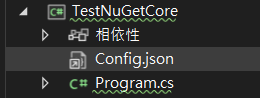
The file property "Copy to output directory" is "Copy if newer" (I don't know where this setting comes from, but "install.ps1" was not executed, so it should be irrelevant).
.NET Framework with PackageReference
"tools\install.ps1" is not executed.
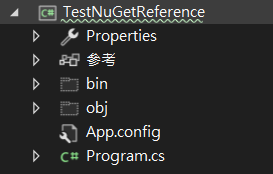
The file is not even copied to the project.
WARNING
Perhaps there is a way to make ".NET Framework" work properly with "PackageReference", but it is questionable how many packages on NuGet can be used this way. I have tested the commonly used "NLog.Config" package, and it also did not copy the "NLog.Config" file to the project.
Change Log
- 2022-11-08 Initial version of the document created.